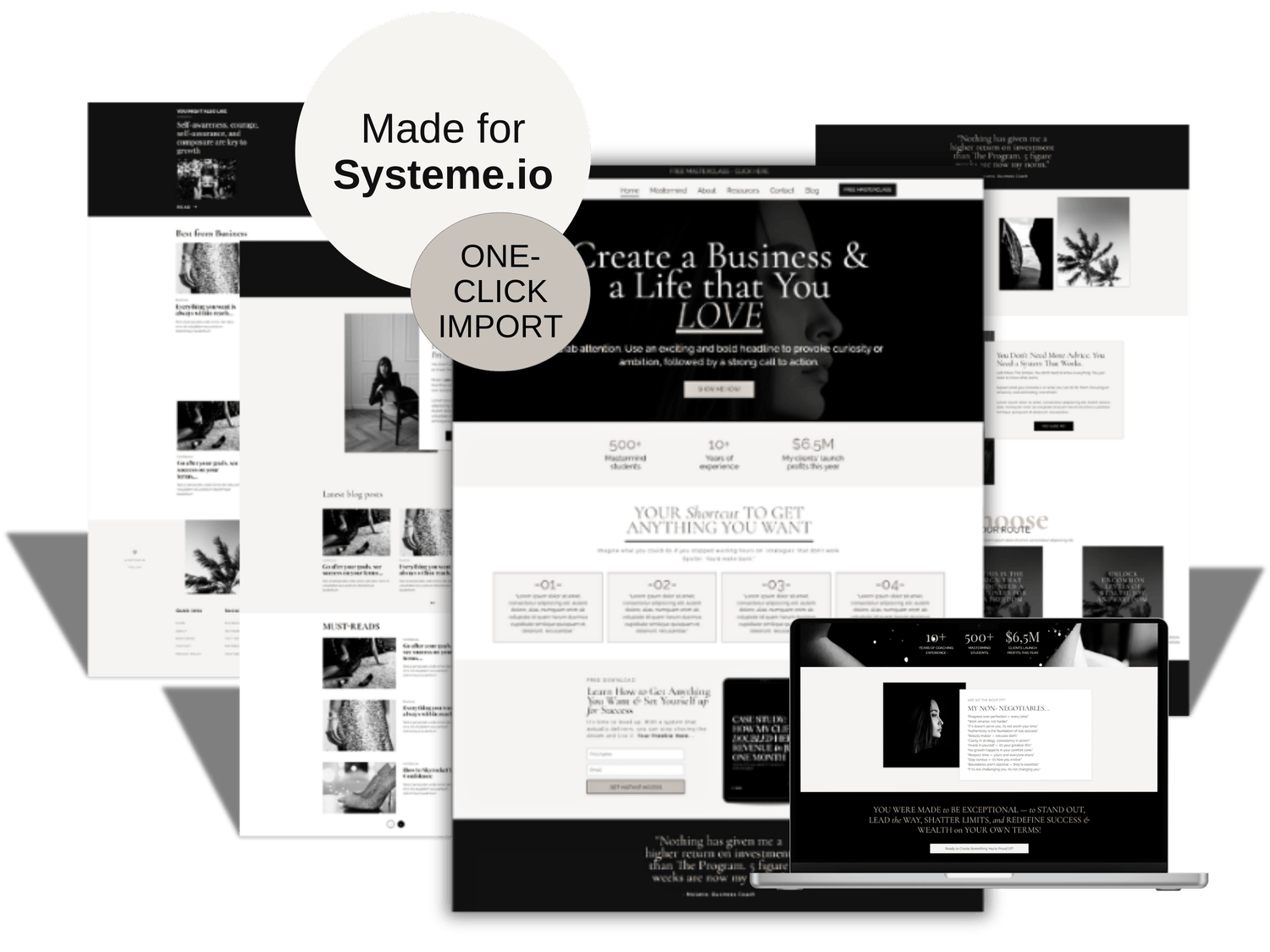
Welcome to the Complete Systeme.io Template Bundle. It includes a pre-designed website, blog, and tripwire sales funnel package—all you need to set up your online presence without overwhelm.
Complete Systeme.io Template Bundle links
TUTORIAL VIDEOS
Watch these walkthrough videos to get started with Systeme.io and your templates even if you have no prior experience and don’t know where to start.
Video 1 : Short Intro to Systeme.io
TIPS TO REMEMBER:Please note before funnel download, if you are using the FREE version of Systeme.io you are limited to 3 funnels, 1 order bump and 1 upsell/ downsell. Templates will not import if you haveexceeded what's mentioned above. What you can do? You can either deactivate one of your current funnels or you can upgrade to the next plan.
Video 2: Importing Your Webpage & Tripwire Sales Funnel Templates
A TIP: Make a copy of the website & tripwire funnel template and deactivate it. So you can use these templates later for your next offers.
Video 3: About Your Website - Blogsite
Tips to Remember
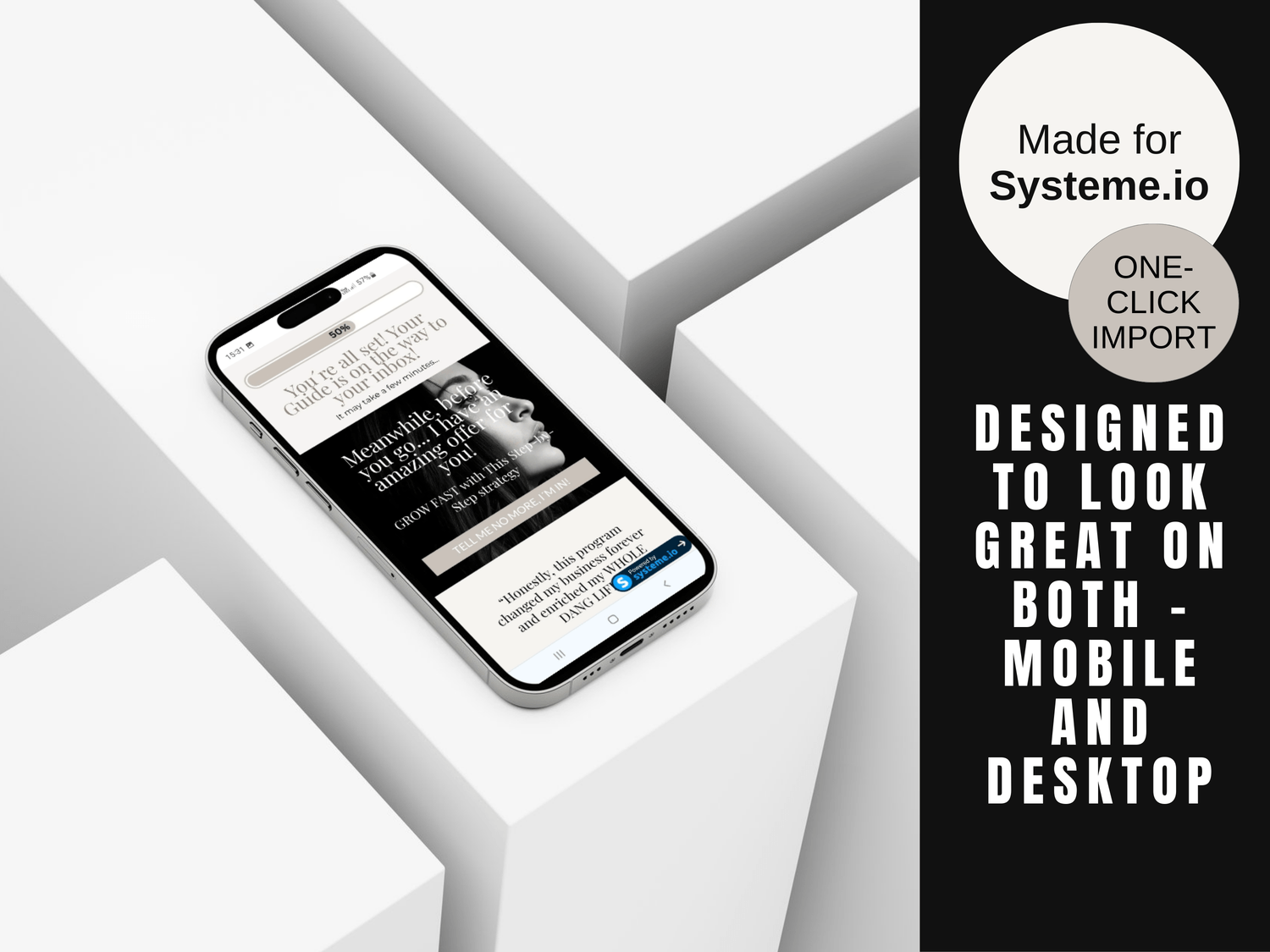
Always ensure to review & edit the mobile view of your website or sales page and verify how it appears on an actual mobile device for the best user experience
Ensure that all links on your website or blogsite template are properly connected and functional. Additionally, check and adjust the menu settings for the mobile view, especially on the blog layout page, to ensure seamless navigation for your visitors
Website: Blog Layout (your header and footer with main page settings) and Pages (Home, About, Contact...). With Blog: Blog Layout, Post Layout, Posts, Categories + sections on your Home page
Unsure if you're ready to launch your blog? Simply duplicate your existing ready-made "Home" page that includes the blog sections and save it for future use. Then, remove the blog sections from your current "Home" page. Don't forget to remove the blog menu item from your header. Just be sure to keep the "Posts" and "Post List" pages intact—you can always use them later if needed
Video 4: How to use Your Tripwire Sales Funnel
Add, delete, or modify steps in your funnel to match your marketing strategy. Optimize your pages for SEO - Improve your search engine rankings by adding meta titles, descriptions, and keywords to each page. To do so, go to the editor of your page, and on the left panel of the editor, click on “Settings”. And drag the page down until the “Search Engine Optimization (SEO)” section appears
Video 5: Short Overview on How to Link Tripwire and Website
Tips to Remember
If you are just starting with Systeme.io, don´t forget to verify your email address for email sending. If you have a custom domain, go to the “Custom domains” section under “Settings” to connect it to your Systeme.io account. Learn how to add a custom domain to your Systeme.io account
Connect your preferred payment gateway, such as Stripe or PayPal, to enable secure transactions. Just go to the “Settings” area, then “Payment gateways“, and after choosing which payment gateway you want to connect, press the “Connect” button and follow the instructions.
Connect Automation: Don’t forget to trigger automation rules. Navigate to the “Automations” section: Once you’re on the dashboard, click on the “Automations” tab in the main menu, then click on “Rules.” Create a new automation rule: Click on “+ Create” to create a new automation rule. Define the trigger: Click on the “+” button next to the trigger to choose an appropriate trigger based on your needs, such as “Funnel step form subscribed,” “New sale,” or “Tag added.” Define the action: Click on the “+” button next to “Action” and select the appropriate action you want to perform, such as “Send an email,” “Subscribe to a campaign,” or “Add a tag.” Save the rule: Click on “Save Rule” at the bottom left to save your new automation rule.
Creating Workflows: Navigate to the “Automations” section: Click on the “Automations” tab in the main menu, then click on “Workflows.” Create a new workflow: Click on the “Create” button, add the name of your workflow, and click on “Save.” Add a trigger: Click on “Create your first trigger” and choose a trigger based on your needs, such as “Funnel form subscribed,” “New sale,” or “Tag added.” Add steps: After choosing a trigger, click on “+” to choose the next step, which can be: Action, Decision, Delay a.An action: Perform an action such as “Add a tag,” “Delete a tag,” “Subscribe to a campaign,” etc. b. A decision: Divide the workflow path according to the criteria of the contacts, choosing the filter of your choice. c. A delay: Sets a period of time before moving on to the next workflow step. Configure the steps: Depending on the chosen step type, configure the settings as needed. For example, if you chose “Subscribe to a campaign” as an action, select the campaign you want the contact to be subscribed to. Save and activate the workflow: Once you’ve configured all the necessary steps in your workflow, save it. To activate the workflow, return to the list of workflows and click on the “Activate” button next to your workflow.
And Always test your Automations & Payments
If you are new to Systeme.io or have any questions - watch these videos and/or explore the HELP pages. You´ll find all the answers there.
Access Your Gift Here
Email & Newsletter Header Template (40 Pages)
Transform your email campaigns with our stunning Email & Newsletter Header Template "CHAIIRO" designed to captivate and engage your audience. This versatile template pack includes 40 fully customizable headers, making it perfect for any niche or business type. Whether you're sending newsletters, promotional emails, or updates, these eye-catching designs will enhance your brand's professional image. Multi-Platform Compatibility: Use with any email marketing software (including Systeme.io), making your campaigns hassle-free and quick to deploy.

Looking for more templates?
Whether launching a new product, offering a service or promoting a product, these done-for-you Systeme.io and Canva marketing templates got you covered. Pre-built templates that you can easily customize to match your brand, saving you hours of work.
Kind words...
Built with systeme.io